
User guide
Keep in touch with the people who matter — one thoughtful share at a time.
This short guide shows how PalsCals works, step by step.
1Add your first pal
Tap Add Pal and choose someone from your phone's contacts. PalsCals links to that contact instead of copying your address book, and only reads it — it never changes your contacts. Then choose how you usually reach them: WhatsApp, SMS, email, Telegram, Signal, Viber or Messenger — you can add more than one.
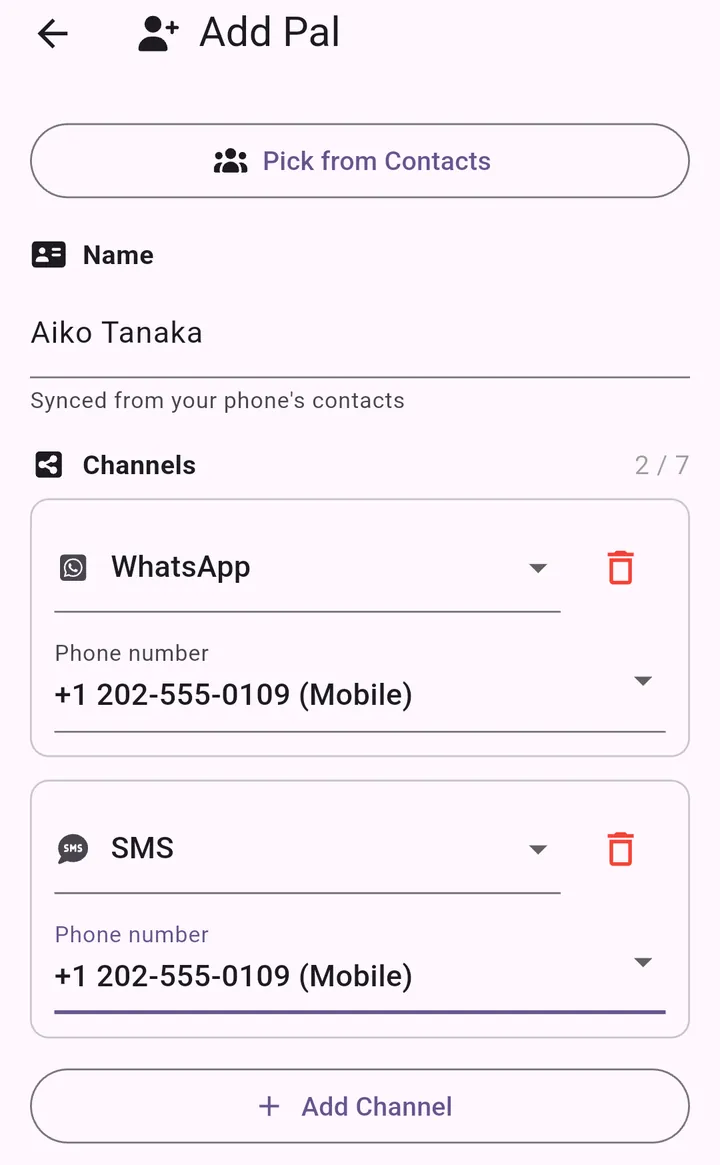
2Choose their topics and how often
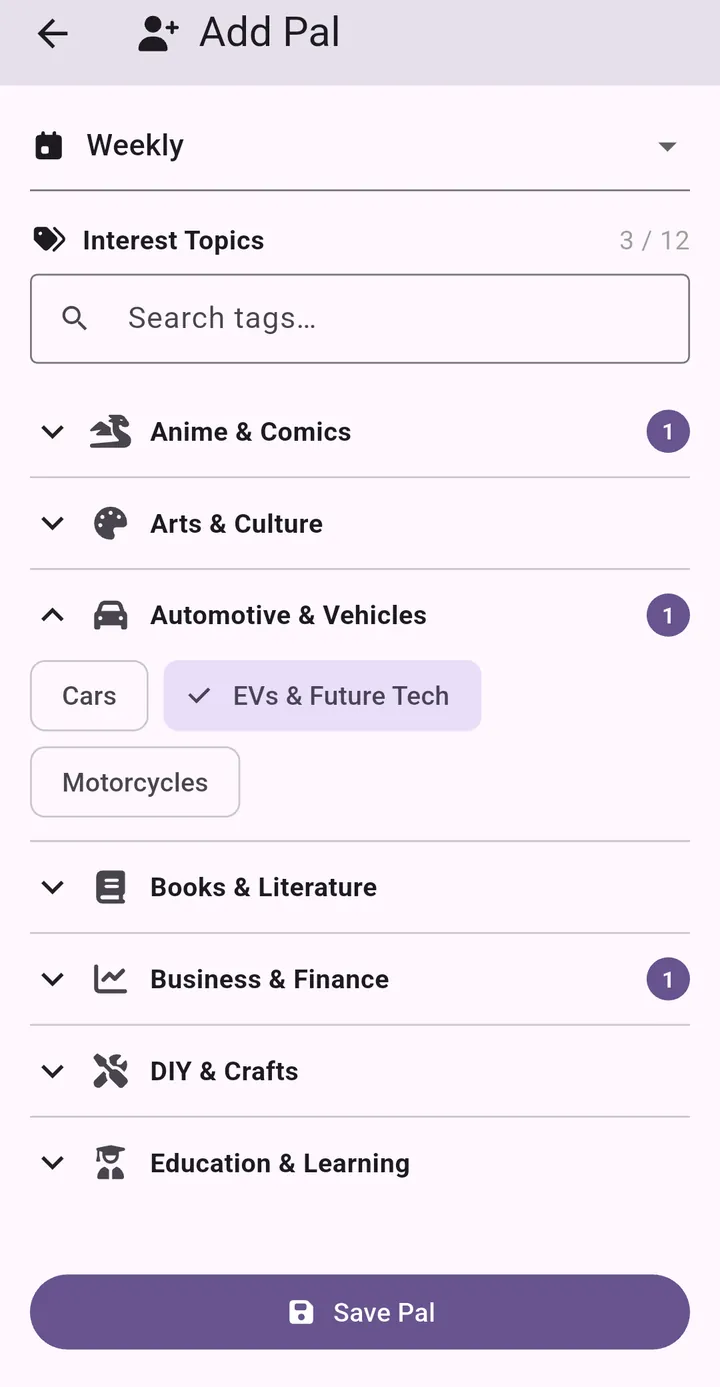
Pick the topics your pal enjoys, from more than 100 — sailing, cooking, football, photography and many more. Then choose how often you'd like to be in touch: daily, weekly, every 2 weeks or monthly. PalsCals keeps a little calendar for each pal and tells you when it's their turn.
3Your Pals Queue
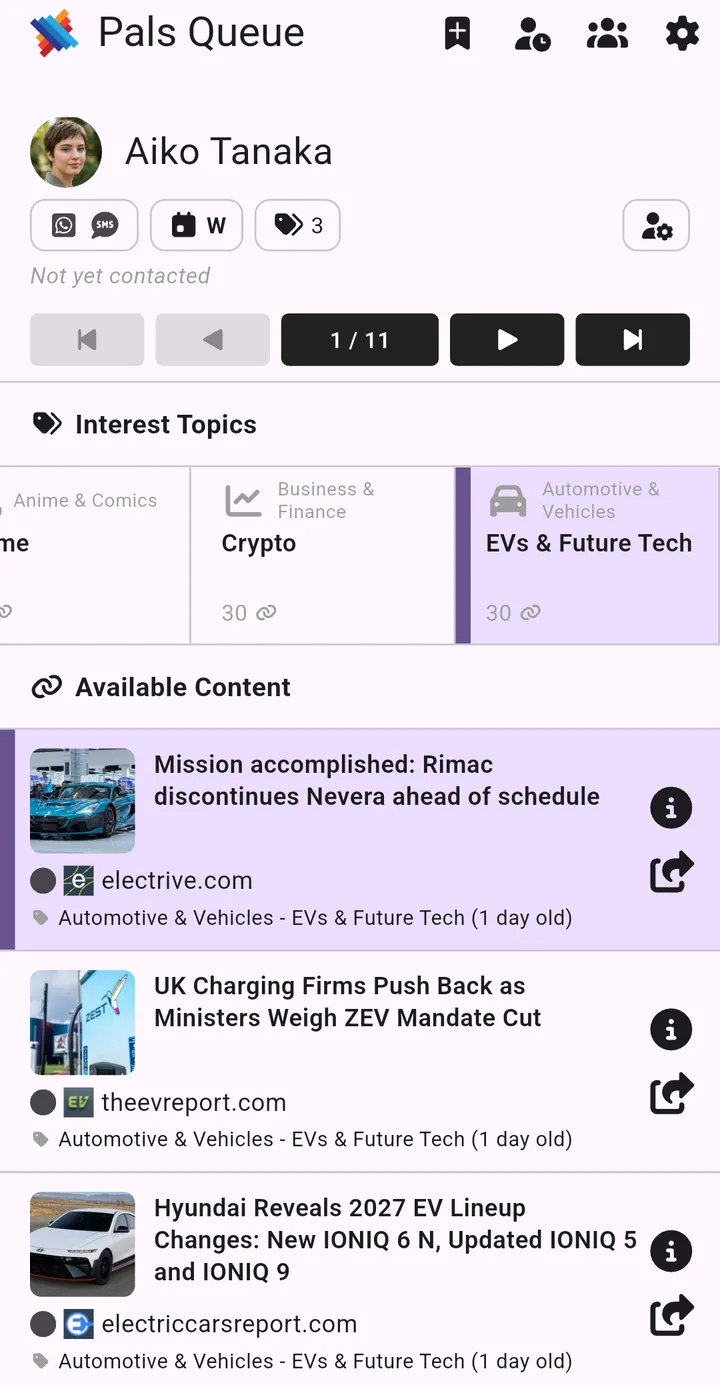
The Pals Queue shows who is due today. For each pal you'll find fresh articles and videos on their topics, with the best matches at the top. New content arrives twice a day, so there's always something worth sharing. Use the arrows at the top to move between the pals who are due; the counter shows where you are (for example 3 / 11). The small pie next to each site name shows how well the article fits the topic (an AI estimate): the fuller the pie, the better the fit, and a question mark means it hasn't been checked yet. Long-press a pie for details.
4Pick, preview, add a line
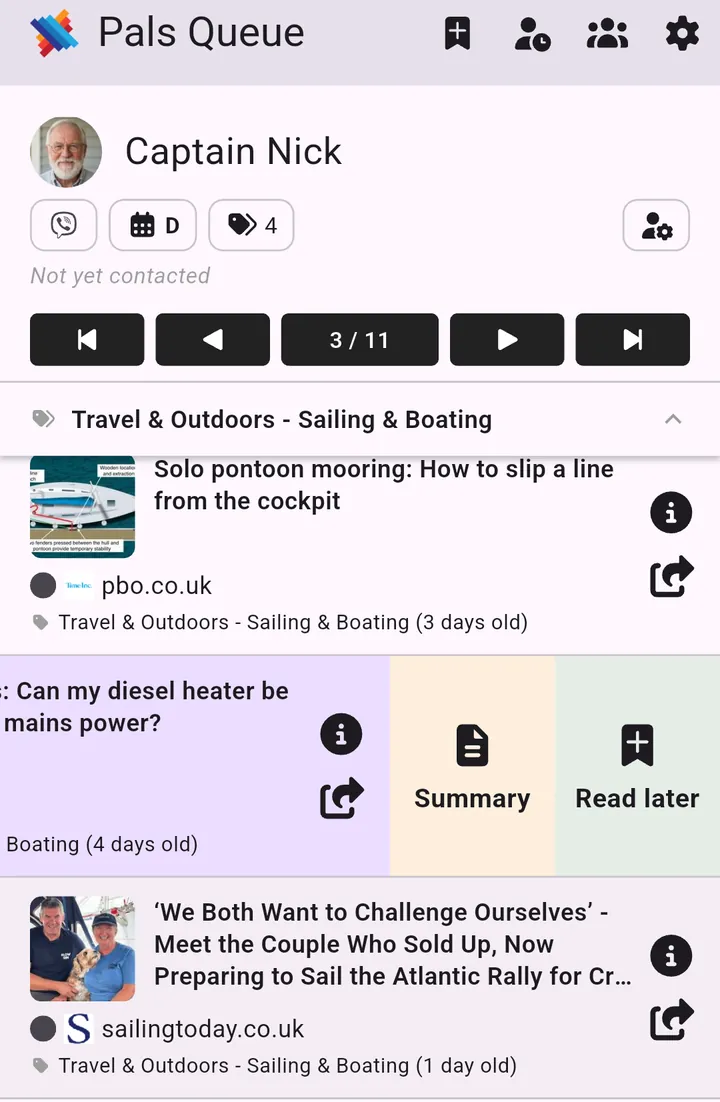
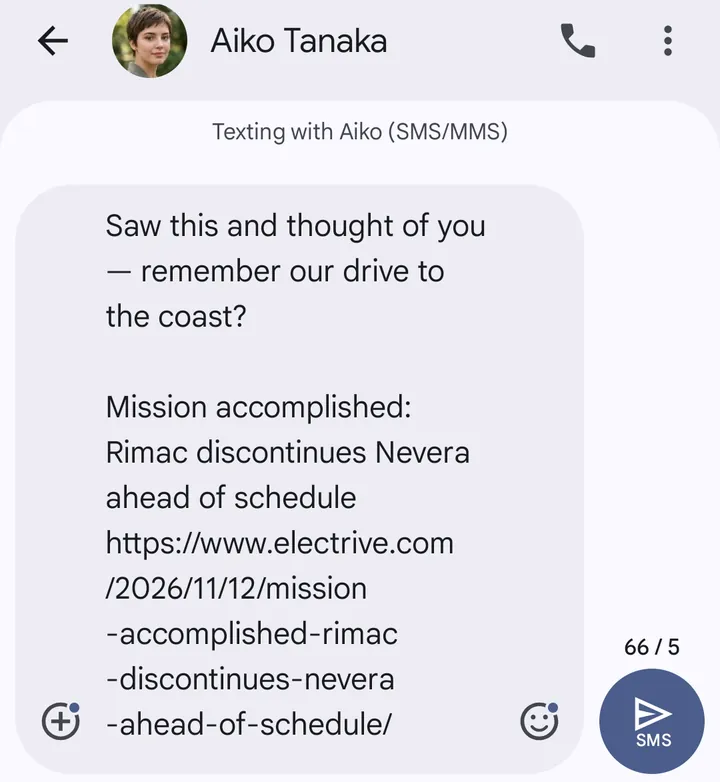
Swipe a pick to the right and tap Preview to read it first (Settings → Link Previews decides how it opens). When you've found the right one, add a few words of your own — that's what makes it personal. Your message carries your line, the title and link, and a short “Shared with PalsCals · palscals.com” line at the end.

5Get the gist with an AI summary
Not sure an article is right for your pal? Swipe it to the left and tap Summary (or use the Summary button under your message). PalsCals shows a short, AI-assisted summary — at most two paragraphs — so you get a quick idea of the article in seconds. Summaries come in 8 languages: English, French, Spanish, German, Italian, Russian, Turkish and Arabic; choose yours in Settings → Summary Language. An AI summary can miss details, so tap Preview to read the full article before you share it. Summaries are a Premium feature.

6Send it in the app you already use
Choose how to send: PalsCals opens WhatsApp, SMS, email or your other app with the message ready. You press send there — PalsCals never sends anything on its own. For any other app, tap Copy & Share: your line and the link go to the clipboard, and Share List opens Android's list of apps to share with (or tap Mark as Sent after pasting it yourself).
7“Did you send it?”
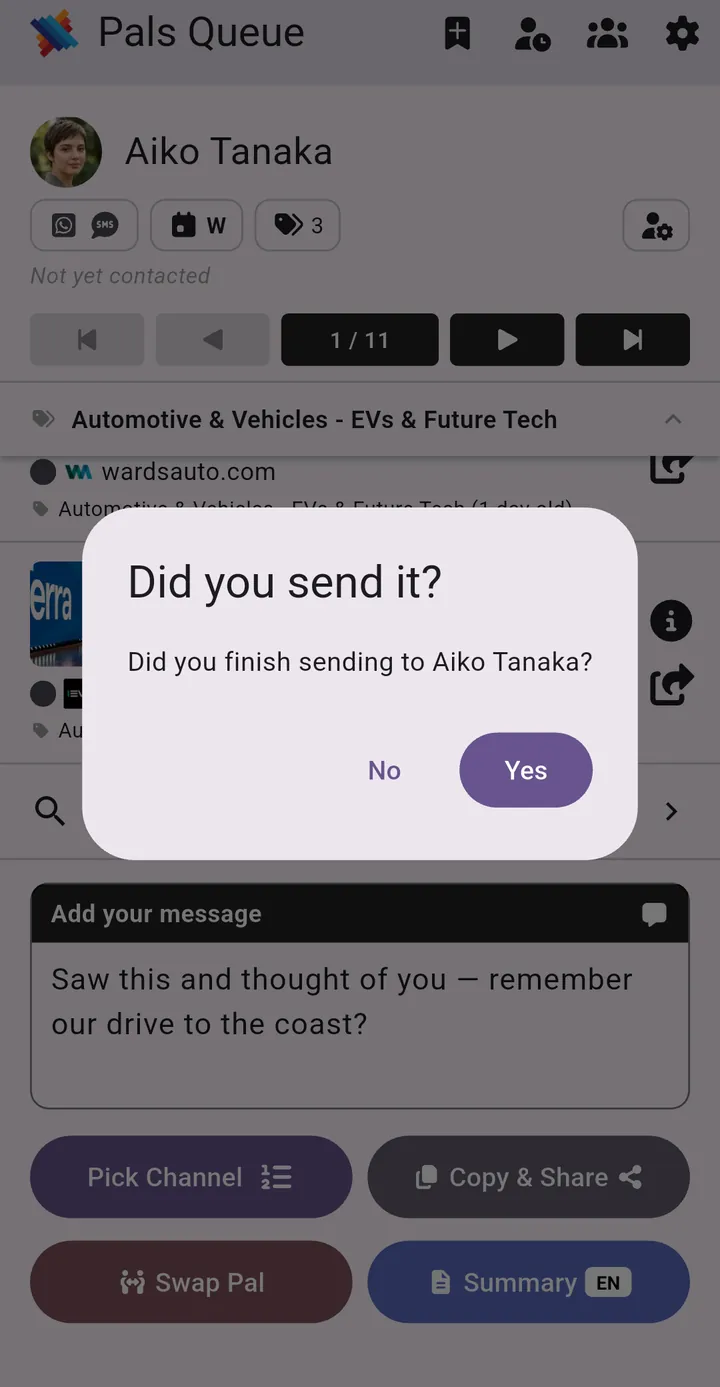
When you come back, PalsCals asks whether you sent it. Yes records the send and moves on to the next pal; No keeps the pal in today's queue. That's how PalsCals knows when you last reached out.
8Every pal in their own app
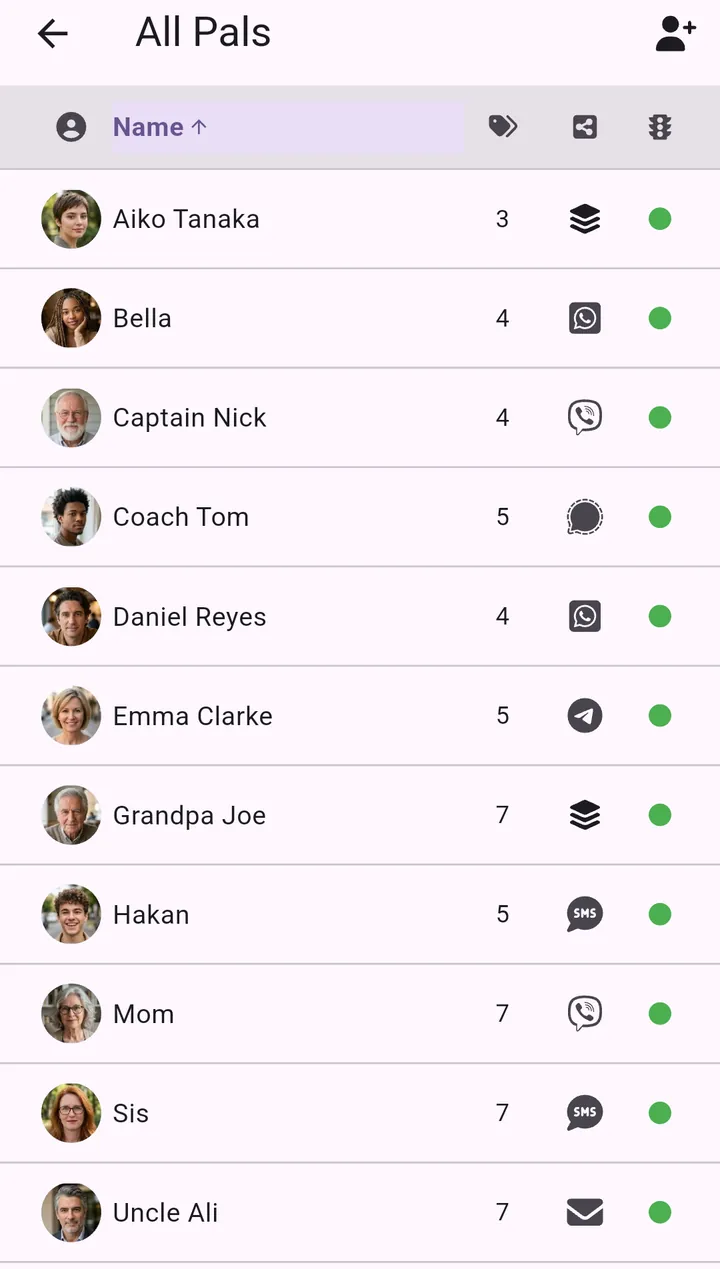
Open All Pals (the group icon at the top of the Pals Queue) to see everyone at a glance. Each row shows how many topics a pal has and how you reach them — WhatsApp for one, Viber, Signal, Telegram, SMS or email for others; a stacked icon means more than one way. A green dot means the pal is in today's Pals Queue (tap them to go straight there); a red dot means they've had a message recently. Swipe a pal to the right to edit them.
9My Reading List and Swap Pal
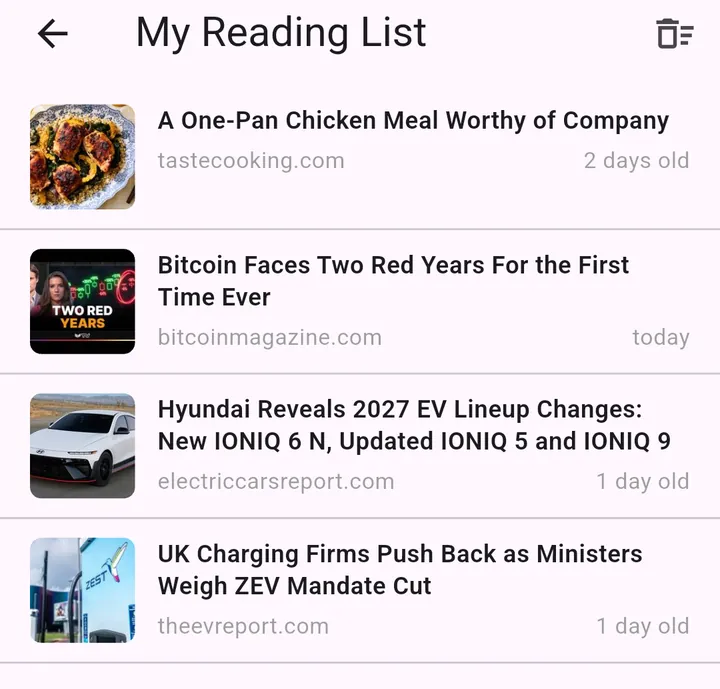
Found something good but not right for this pal? Swipe it to the left and tap Read later to keep it in My Reading List (Premium can send from there, too). With Swap Pal you can send a pick to a different pal instead — even one who isn't due yet; their schedule then starts again from today.
10Premium extras
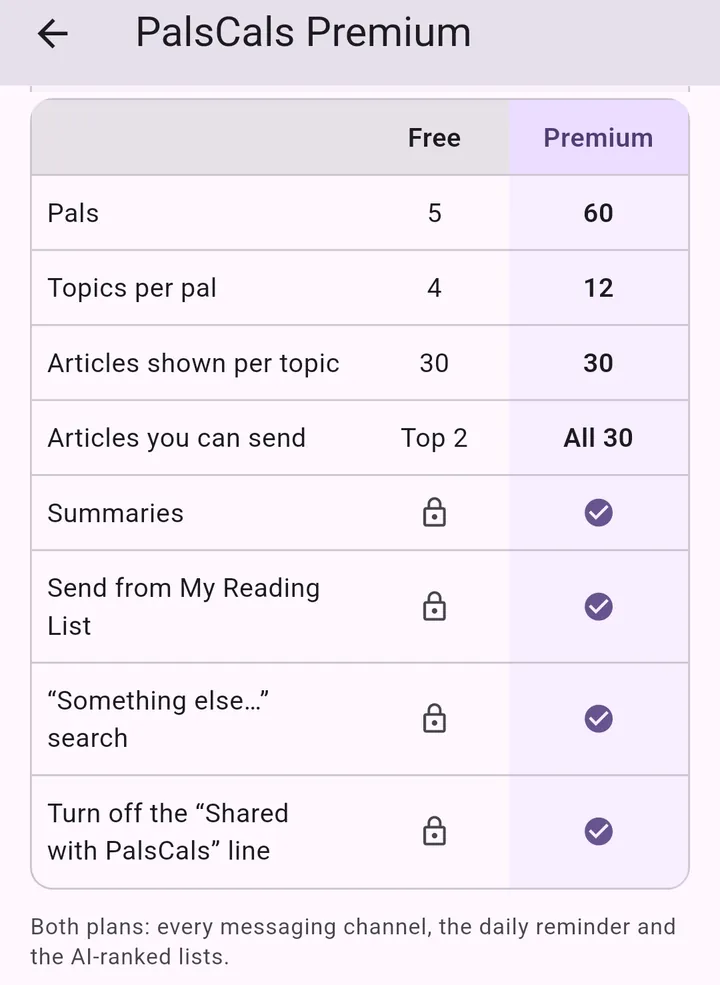
Every new install starts with 15 days of Premium. Premium adds AI summaries of articles, “Something else…” (a search when none of the picks fits), sending from your Reading List, up to 60 pals with 12 topics each, all 30 picks per topic ready to send (the free plan sends the top 2), and the option to turn off the “Shared with PalsCals” line. Afterwards Premium is a yearly subscription. On the free plan, 5 pals and 4 topics per pal stay active — you choose which — and the rest are paused, never deleted.
11Special days
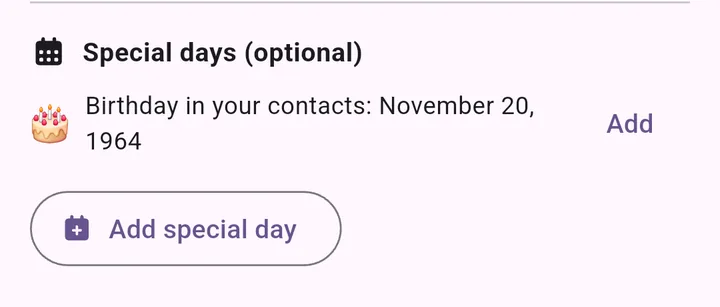
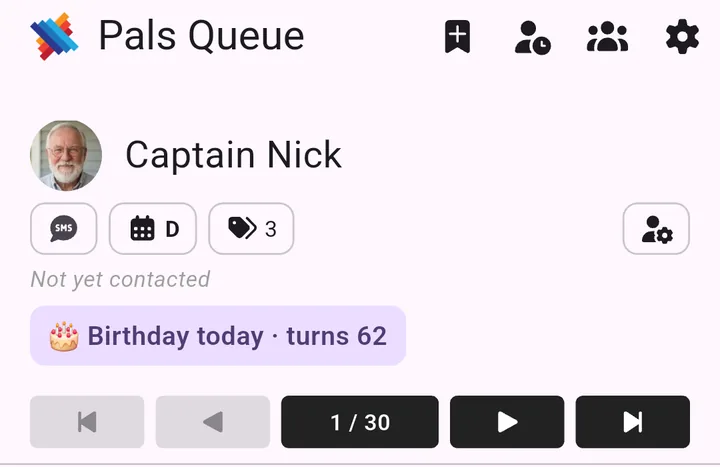
In Add Pal or Edit Pal, under Special days, add a birthday, an anniversary or another date that matters (up to 4 per pal). If the date is in your phone's contacts, PalsCals offers to add it with one tap. On the day you get a notification, and the pal appears at the top of your Pals Queue with a badge, even if it isn't their turn yet; on a birthday a short greeting is ready in your message. If you like, PalsCals reminds you 1 day, 3 days or 1 week before as well. Special days are free.
12Reminder, invites and your privacy
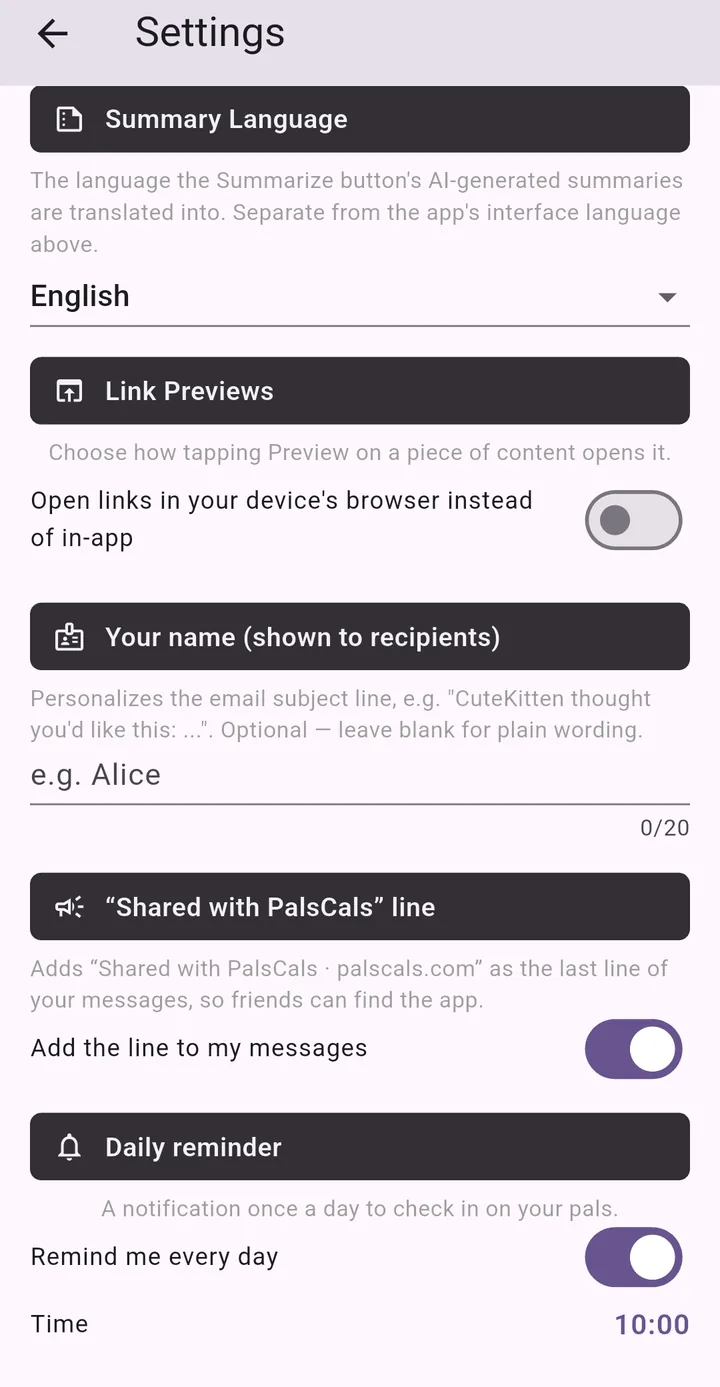
- Daily reminder: a gentle notification once a day, at the time you choose in Settings → Reminders (10:00 unless you change it).
- Invite friends: share your invite link from the Premium screen (Invite friends). When a friend installs PalsCals, adds 2 pals and sends something within 14 days, you get one more month of Premium — up to 6 months in total. The details are in our Terms of Service.
- Your privacy: your pals, their topics and what you've sent stay on your phone. There are no accounts and no ads. Read the details in our privacy policy.
- Help in the app: Settings → About PalsCals → Support has the Tour of PalsCals and short swipe tutorials you can watch or try with an example.
Questions?
Write to support@palscals.com — we read every message.